What this page sets up for you
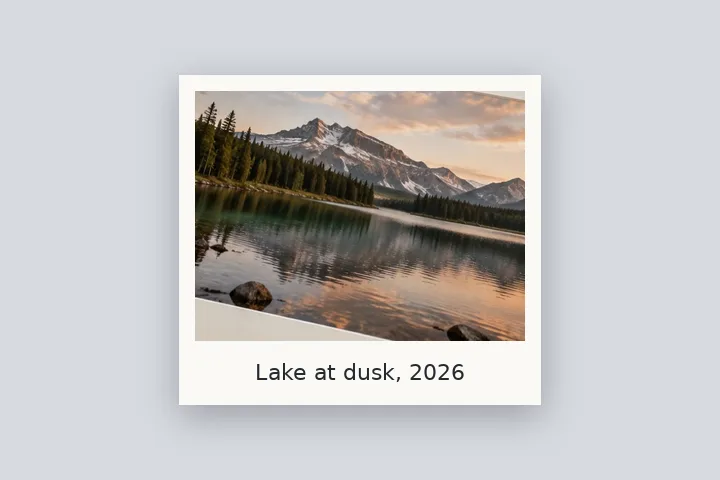
Photo pixels fixed: an even paper-white border with a deep lower edge, and your caption set in it — never on the picture.
Opens on a paper-white border, 4 % at the sides and top and 13 % below. Type the caption under Caption — up to two lines, Hindi included.
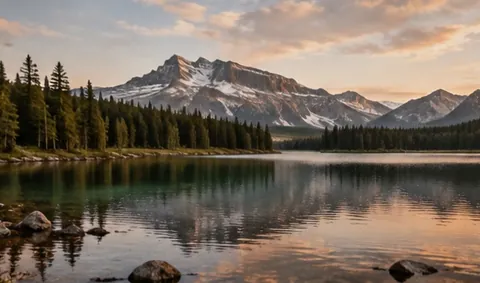
Any photo. The caption goes in the border below it.
How to do it
- Open the photo. It opens with a deep lower border, in this tab; nothing is uploaded.
- Type the caption. Under Caption, write one or two lines. Hindi and other Devanagari text works.
- Set the size and face. Choose sans, serif or Devanagari, the size and the alignment; add a date if you want one.
- Export. Save as PNG or JPG. The caption is part of the image, so it travels with it.
The construction this opening uses
A caption belongs beside a picture, not on it. This opening deepens the lower border to thirteen per cent of the long edge — the proportion of a mounted print's label area — and sets the caption in it, centred and kept within the photo's width so it lines up with the picture rather than the paper.
On a 4000 × 3000 photo the lower border is 520 px and a 34 % caption is 177 px tall, about 15 mm at 300 PPI. On a 1080-pixel phone photo the border is 140 px and the type 48 px. Two lines share the same border at the line height you set.
| Photo | Lower border | Type size |
|---|---|---|
| 4000 × 3000 | 520 px | 177 px |
| 3024 × 4032 | 524 px | 178 px |
| 1080 × 1350 | 176 px | 60 px |
Where the treatment stops working
This sets plain text in a border. It does not wrap long text — over two lines are cut to two, and a long line is condensed to the photo's width — and it cannot place text on top of the picture. Only Latin and Devanagari faces are bundled; Tamil, Bengali and other scripts may fall back to whatever face the device has.
- Two lines at most; a long line is narrowed to fit the photo's width.
- Devanagari is bundled; other Indian scripts are not yet.
- Caption text is never saved in recipes or share links.
The opening values are a starting construction, not a filter baked into the page. Every width, colour, unit and mode remains editable after the photograph opens, and the output readout states the dimensions before export. That makes the result reproducible instead of leaving its proportions hidden inside a decorative preset.
Questions
How big should the caption be?
Measured against the border it sits in, about a third of its depth reads as a caption rather than a headline; this opening uses 34 %. Measured against the canvas width, 3–5 % suits most photos. Switch between the two under Caption; the type size in pixels is printed below the controls.
Can I write the caption in Hindi?
Yes. Devanagari text — Hindi, Marathi, Nepali, Sanskrit — is set in Noto Sans Devanagari, which ships with this site and loads from it only when your caption contains Devanagari. If the face cannot load, the export stops with a message rather than silently using a substitute face. Other Indian scripts are not bundled yet.
Will the caption cover my photo?
No. It is set in the border, never on the picture, and kept within the photo's width. If the border is too shallow for the size you chose, the page offers to deepen it by the exact number of pixels needed.
Can I add a date?
Yes. Under Caption, pick a date (or leave it for today) and a format — DD/MM/YYYY, DD-MM-YYYY or D MMM YYYY — and it is added as the second line. The page never adds a date you did not ask for.
Can the caption go above the photo?
Yes: set Position to Upper border, and widen the top edge under Border, or use the deepen button.
Same studio, other openings
- Name and date on photo An exam strip with name and date of photograph, exact pixels, inside a KB range.
- Polaroid frame A clean white frame with a measured writing margin below.
- Add a white border to a photo Pure or paper white, even or weighted, with the saved file checked for banding.
- Photo frame editor Mat, keylines, a frame band and a shadow, every one an editable number.
- Border Photo Add a border to any photo in px, %, mm or inches, measured and processed on your device.


